First Contact Safety Tip
If you have Office 365 email, chances are you or your email admin have turned on the First Contact Safety Tip system. This is the system that automatically adds a warning to emails from senders you don’t normally get emails from, saying “You don’t often get email from…”
If you have Office 365 email, chances are you or your email admin have turned on the First Contact Safety Tip system. This is the system that automatically adds a warning to emails from senders you don’t normally get emails from, saying “You don’t often get email from…”

For those of us who like to automate things, this also puts something in the email headers. Specifically, under the X-Forefront-Antispam-Report header, it adds a SFTY:9.25 tag.
X-Forefront-Antispam-Report: CIP:17.23.6.29;CTRY:US;LANG:en;SCL:1;SRV:;IPV:NLI;SFV:NSPM;H:[redacted];PTR:[redacted];CAT:NONE;SFTY:9.25;SFS:(13230040)(5073199012)(69100299015)(12012899012)(4076899003)(8096899003);DIR:INB;SFTY:9.25;
There’s good and bad news to this. The good news is that we can create an Outlook rule on our client email to filter out these emails to a separate folder. The bad news is that the separate folder can’t be the “Other” inbox if you have Focused/Other inboxes enabled.
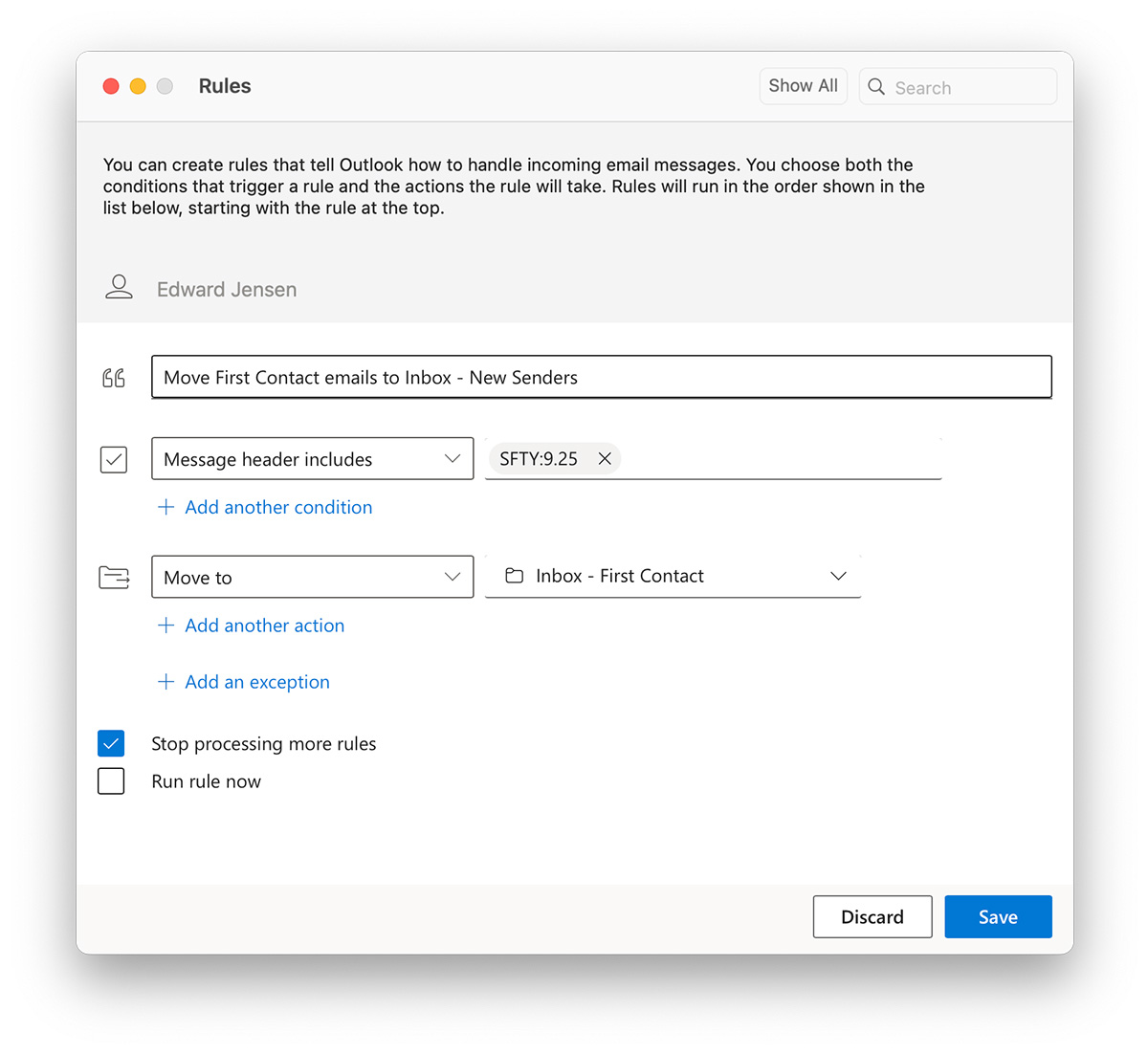
Add the “Message header includes” condition and set the value to SFTY:9.25, and then select the folder you want to move the emails to. I’ve created a separate Inbox – First Contact folder. (Just remember to check that one periodically!)
This is obviously a bodge job to get around a limitation of Outlook. Hopefully, in the future, they’ll allow us to send emails to the Other inbox as a destination rule.